Cesvaines Street 15A, Riga
Mon–Fri 9:00 a.m.–6:00 p.m., Saturday 10:00 a.m.–3:00 p.m.
Search on Waze/Google Maps: LEDakcijas.lv
Cesvaines Street 15A, Riga
Mon–Fri 9:00 a.m.–6:00 p.m., Saturday 10:00 a.m.–3:00 p.m.
Search on Waze/Google Maps: LEDakcijas.lv
Cesvaines Street 15A, Riga
Mon–Fri 9:00 a.m.–6:00 p.m., Saturday 10:00 a.m.–3:00 p.m.
Search on Waze/Google Maps: LEDakcijas.lv
Cesvaines Street 15A, Riga
Mon–Fri 9:00 a.m.–6:00 p.m., Saturday 10:00 a.m.–3:00 p.m.
Search on Waze/Google Maps: LEDakcijas.lv
Cesvaines Street 15A, Riga
Mon–Fri 9:00 a.m.–6:00 p.m., Saturday 10:00 a.m.–3:00 p.m.
Search on Waze/Google Maps: LEDakcijas.lv
Cesvaines Street 15A, Riga
Mon–Fri 9:00 a.m.–6:00 p.m., Saturday 10:00 a.m.–3:00 p.m.
Search on Waze/Google Maps: LEDakcijas.lv
Welcome to Ledakcijas
Main menu
Your cart
-
LED apgaismojums tehnikai
-
Apgaismojums
-
Solārās sistēmas un enerģija
-
Videonovērošana un drošība
-
Autobraucējiem un tehnikai
-
Dārzam un pagalmam
-
Garāžai, servisam un instrumenti
-
Mājai, interjeram un sadzīvei
-
Mājdzīvnieku aprīkojums
-
Kabeļi, pagarinātāji, uzlāde
-
Kempings, atpūta un teltis
-
Sports, hobiji un spēles
-
Pārtikas un dzērienu iekārtas (HoReCa)
-
Industriālās iekārtas un lopkopība
Product Catalog
-
LED apgaismojums tehnikai
-
Apgaismojums
-
LED lentes un aksesuāri
-
Apkure, klimats un ūdens
-
Solārās sistēmas un enerģija
-
Dārza roboti un pļāvēji
-
Videonovērošana un drošība
-
Autobraucējiem un tehnikai
-
Dārzam un pagalmam
-
Garāžai, servisam un instrumenti
-
Mājai, interjeram un sadzīvei
-
Mājdzīvnieku aprīkojums
-
Elektronika un datorpreces
-
Kabeļi, pagarinātāji, uzlāde
-
Kempings, atpūta un teltis
-
Sports, hobiji un spēles
-
Pārtikas un dzērienu iekārtas (HoReCa)
-
Industriālās iekārtas un lopkopība
Choose your Location
-
Store
Free order pickup
We prepare orders for pickup within a few hours
15A Cesvaines Street, Riga, LV-1073
📞 +371 200 22 881
🕐
Monday–Friday: 9:00 a.m.–6:00 p. m.
Saturday: 10:00 a.m.–3:00 p.m.
Sunday: Closed
Aksesuāri videonovērošanai
36 products
36 products
Sort by:
- Featured
- Most relevant
- Best selling
- Alphabetically, A-Z
- Alphabetically, Z-A
- Price, low to high
- Price, high to low
- Date, old to new
- Date, new to old
€1,99
€3,99
€9,99
€24,99
| Parameter | Value / Description |
|---|---|
| Rated power | 6 W — mentioned in connection with the Talon Pro set |
| Operating temperature | –10 °C to +55 °C |
| Protection Class | IP65 – protection against dust and water jets not under pressure |
| Material / Construction | A solid surface with a sturdy frame and fasteners, designed for outdoor use (exposed to the elements) |
| Connector / Cable | Special cable and accessories for connecting to a Camovue / Talon camera – integrated charging system with adjustment |
| Installation Options | Flexible mounting; can be attached to a wall, pole, or other surface at the optimal angle |
| Operating Environment / Guidelines | Place in a location with maximum sunlight exposure; avoid shadows and dirt, and clean the panel regularly |
€29,99
PID: 480853
EAN: 6976930227593
MPN: BP-10
Estimated delivery time after order placement: 120 days (to be confirmed with the customer service team)
RRP: €59.99
Package features
Gross depth (mm): 70 mm
Gross height (mm): 170 mm
Gross width (mm): 140 mm
Packing quantity: 1 piece
Paper/Cardboard: 976 g
Plastic (Non-PET): 244 g
Tare weight (kg): 0.06 kg
Volume (m³): 0.001666 m³
Battery classification: CL126:NE:2016-12-09
Battery composition: CL127:KT:2016-12-09
Battery type: Rechargeable battery
Embedded battery: No
WEEE tax: No
Pallet quantity: 1,000 pcs.
Technical details
Gross weight: 0.41 kg
Net weight: 0.35 kg
Manufacturer: Reolink
Manufacturer's product model name: BP-10
Manufacturer's product series: Camovue Lithium Battery Pack
Warranty: 24 months
€29,99
€32,99
Specifications:
Size & Weight
Dimensions - 210.6 x 174.6 x 15.4 (mm)
Cable length - 4 metres
Weight - 360g
Interface - USB Type-C port
Electrical parameters
Max. Voltage - 6,0W
Max. Current - 960mA
Max. Power - 5,8W
Other
Operating temperature - -10℃ to +55℃
Working humidity - 10%~90%
Waterproof - IP65
€33,39
Product Description
A reliable source of energy
Easy installation
Technical Specifications / Data Sheet
Specifications
Interfaces
Power Adapters
Physical Parameters
€42,29
Description
6-port Fast Ethernet switch with PoE+ power supply
The Ruijie Reyee RG-ES106F-P is an unmanaged 6-port switch designed for connecting IP cameras, wireless access points, IP phones, and other PoE devices. It is equipped with 4 PoE+ ports and 2 uplink ports, ensuring simple and reliable network setup.
PoE+ power delivery of up to 30 W per port
The four PoE ports support the IEEE 802.3af/at standards and are capable of delivering up to 30 W of power per port. The total PoE power budget is 54 W, which allows multiple network devices to be powered simultaneously.
Extended Transmission Mode
In Extend mode, the data transfer rate of PoE ports is reduced to 10 Mb/s, allowing for a data transfer distance of up to 200 m, while under laboratory conditions, using high-quality Cat5e or higher-category cable, the distance can reach up to 250 m. This mode is particularly well-suited for video surveillance systems.
Port Isolation Feature
In Isolation mode, PoE ports do not communicate with each other but maintain a connection with the uplink ports. This improves network security and reduces the likelihood of unwanted data traffic.
Durable metal housing
The switch is housed in a metal enclosure with a fanless design, which ensures quiet operation, efficient heat dissipation, and a long service life.
Plug & Play Functionality
The device requires no configuration—simply connect the power supply and network devices, and the switch will start working immediately. It is suitable for homes, offices, stores, and video surveillance systems.
Specifications
Model: RG-ES106F-P
Type: Unmanaged PoE Switch
Number of ports: 6 × RJ45 10/100 Mb/s
PoE ports: 4
Upload ports: 2
PoE standard: IEEE 802.3af/at
Maximum PoE power per port: 30 W
Total PoE power budget: 54 W
Switching capacity: 1.2 Gb/s
MAC Address Table: 2,000 entries
Surge protection: 4 kV
Operating modes: Default, Extend, Isolation
Maximum transmission distance in Extend mode: up to 200 m
Power supply voltage: 100–240 V AC, 50/60 Hz
Maximum power consumption: up to 60 W
Operating temperature: 0 to 45 °C
Housing material: Metal
Cooling: Fanless
Dimensions: 166 × 132.6 × 43 mm
High-capacity battery: Reolink Go Ultra/Go Plus will switch to standby mode to save battery when no motion is detected.
The high-capacity rechargeable battery will last approximately two months in standby mode, or approximately 500 minutes with active access to live streaming/recording.
The battery is only compatible with Reolink Go Ultra/Go Plus.
Charging method: the battery can be charged using a DC 5V 2A USB power adapter or a Reolink solar panel.
€69,27
€125,00
Full-length CAT5e network cable, 305 m
Features and Benefits
- Cable length: 305 m
- Yarn diameter: 0.5 mm
- Outstanding data transfer performance thanks to full-power cables
- Quality verified using Fluke testing equipment
- Provides a reliable and long PoE (Power over Ethernet) transmission distance
- PVC jacket with good flame-retardant protection
- Suitable for computer networks, video surveillance systems, IP cameras, routers, switches, and other network equipment
Key Specifications
Cable type: CAT5e
Cable length: 305 m
Conductor material: Solid copper
Conductor diameter: 0.5 mm
Jacket material: PVC
PoE support: Yes
Quality testing: Fluke test
Fire safety: Flame-retardant PVC jacket
Description
The HIKVISION CAT5e network cable, 305 m in length, is designed for reliable data and power transmission in network infrastructures. The cable is made of solid bare copper conductors, ensuring high signal quality, minimal signal loss, and greater PoE transmission distance. It is suitable for IP video surveillance systems, computer networks, access control systems, and other professional networking solutions.
Features
- Full-power fiber for optimal data transmission
- Suitable for PoE (Power over Ethernet) devices
- Stable and reliable signal transmission over long distances
- Proven quality for professional use
- Suitable for IP cameras, switches, routers, and other network devices
- PVC jacket with good mechanical strength and flame-retardant properties
Specifications
Manufacturer: HIKVISION
Model code: DS-1LN5E-S
Cable category: CAT5e
Conductor material: Solid Bare Copper
Cable length: 305 m
Net weight: 8.65 kg
Gross weight: 9.925 kg
PoE support: Yes
Jacket material: PVC
Brand: HIKVISION
Up to 4 IP camera input channels
H.265+/H.265/H.264+/H.264 video formats
Decoding capacity: up to 1 channel @ 12 MP or 2 channels @ 8 MP or 4 channels @ 4 MP or 8 channels @ 1080p
Up to 40 Mbps incoming data stream
Uses Hikvision Acusense technology to reduce manual effort and security costs
Basic Specifications
Brand: Hikvision
Manufacturer Code: DS-7604NXI-K1
Net Weight: 1.125 kg
Gross Weight: 1.84 kg
Key Features
Wireless: N/A
Artificial Intelligence (AI): Yes
Number of IP Channels: 4 Channels
Hard Disk Drive (HDD) Interface: 1
PoE Interface: N/A
Decoding Capacity: 8 Channels @ 1080p
External Interface: HDMI, VGA
RAID: No
Enclosure: 1U
Video & Audio
Ingress: 40 Mbps
Outgress: 80 Mbps
Video Output Mode: HDMI1/VGA simultaneous output
Decoding
Decoding Format: H.265/H.265+/H.264+/H.264
Network
Network interface: 1 × RJ-45 10/100/1000 Mbps self-adaptive Ethernet interface
Remote connection: 128
General
Power supply: 12 V DC, 1.5 A
Operating humidity: 10% to 90%
Operating temperature: -10 °C to +55 °C
Power consumption: ≤ 10 W (without hard disk)
Additional interfaces
SATA: 1 × SATA interface
USB interface: Front panel - 1 × USB 2.0; Rear panel - 1 × USB 2.0
PID: 484464
EAN: 6976930228699
MPN: ACCBP01C
Estimated delivery time after order placement: 120 days (to be coordinated with the customer service team)
RRP: €149.99
Package features
Gross depth (mm): 295 mm
Gross height (mm): 345 mm
Gross width (mm): 225 mm
Packing quantity: 1 piece
Paper/Pulpboard: 0.17 g
Plastic (Non-PET): 0.04 g
Tare weight (kg): 0.22 kg
Net weight (kg): 0.10 kg
Volume (m³): 0.02 m³
Battery classification: CL126:NE:2016-12-09
Battery composition: CL127:KT:2016-12-09
Battery type: Accumulator
Embedded battery: Yes
WEEE tax: Yes
WEEE tax: CL109:5:2017-04-01
Pallet quantity: 75 pcs.
Technical details
Gross weight: 2.17 kg
Net weight: 1.95 kg
Manufacturer: Reolink
Manufacturer’s model name: RLA-BP1
Manufacturer’s product series: 12800mAh Long-Lasting Battery Pack for Outdoor Use
Design – Protection features: IP67
NVR - Network Video Recorder
NVR is a network video recorder for home and office video surveillance. Ajax cameras and third party IP cameras can be connected to the device.
The user can view live and archived video in Ajax applications. The recorder saves the received video data on a hard disk (not included) with appropriate settings.
If no hard disk is installed, the NVR only serves to integrate third party IP cameras into the Ajax system.
⚡ Important: Only use HDDs with a power consumption of up to 7 W.
The NVR requires an internet connection to connect to the Ajax Cloud. The device connects to the network with an Ethernet cable.
Available versions
-
NVR (8-ch)
-
NVR (16-ch)
-
NVR DC (8-ch)
-
NVR DC (16-ch)
Main features
-
Compatible with Ajax cameras and third party IP cameras.
-
Video alarm verification.
-
Archive video viewing and downloading in the app.
-
Support for HD drives up to 16 TB (not included).
-
Secure connection to Ajax Cloud via Ethernet.
-
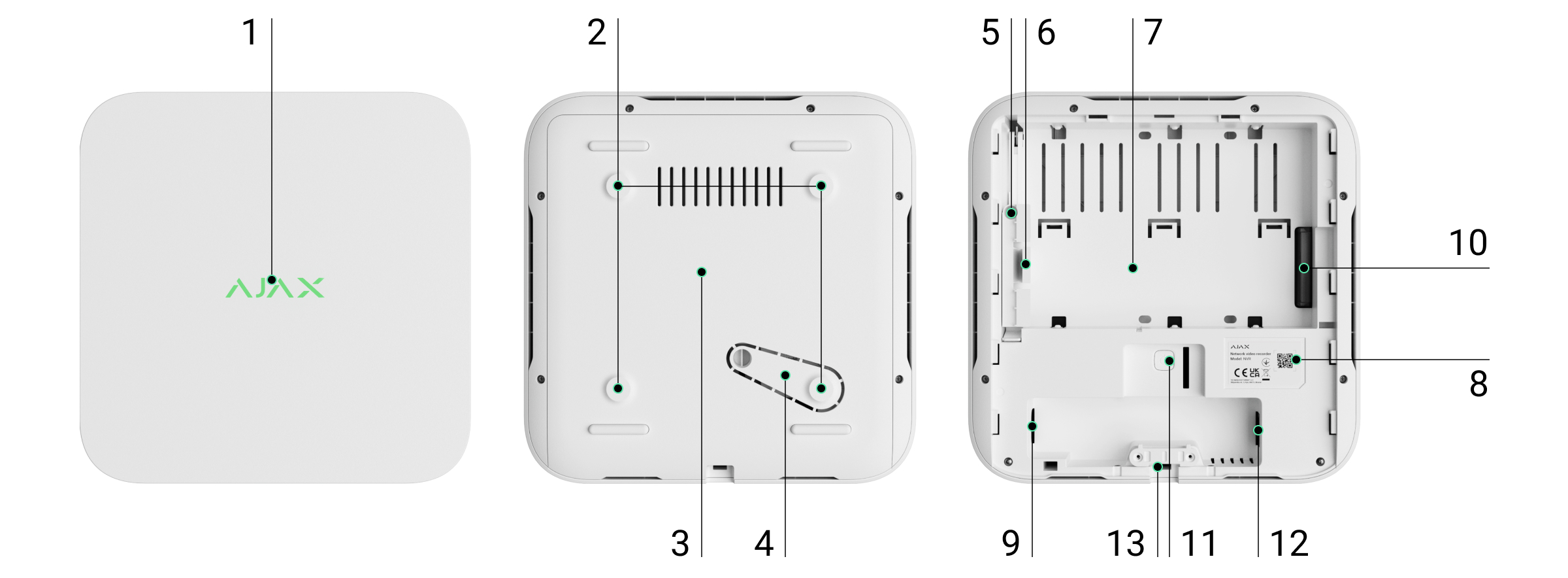
Functional elements
-
Logo with LED indicator - shows the status of the device.
-
Mounting holes - for securing the SmartBracket panel to a surface.
-
SmartBracket mounting panel - for easy and secure installation.
-
Perforated part on the mounting panel - do not break off! It provides a tamper that reacts to attempts to disconnect the device from the surface.
-
Hole for HDD lock screw - for secure HDD fixation.
-
HDD lock.
-
HDD mounting space - supports HDD up to 16 TB.
-
QR code with device ID - required to connect the NVR to the Ajax system.
-
Power connector.
-
HDD connector.
-
Parameter reset button.
-
Ethernet connector - for network connection.
-
Cable lock - for secure cable fixing.
Operating principle
The NVR is a video recorder designed to connect third party IP cameras (with ONVIF and RTSP protocols) and Ajax cameras.
-
Supports hard disk installation up to 16 TB (not included).
-
Can also operate without HDD, for integration with cameras only.
-
Users can use the Video Archive Calculator to calculate the required storage capacity and recording duration.
NVR capabilities:
-
Add and configure IP cameras (resolution, brightness, contrast, etc.).
-
View video in real time with the ability to zoom in.
-
View and export archive video by chronology or calendar (if HDD attached).
-
Choose the type of motion detection: in the camera or in the NVR itself.
-
Configure motion detection on the NVR: zones, sensitivity.
-
Use the Video Wall, which combines the images of all connected cameras.
-
Create video scenarios that send a short video to the Ajax app when the detector is activated.
⚡ From firmware version 2.244, all videos downloaded from the NVR have an Ajax digital signature to authenticate them. Use the Ajax Media Player application for verification.
Integration with VMS
The NVR can be connected to third party video management systems(Milestone, Genetec, Axxon, Digifort) via ONVIF protocol (from firmware version 2.289 ).
Configuration is possible via:
-
Ajax Security System (v3.25+),
-
Ajax PRO: Tool for Engineers (v2.25+),
-
Ajax PRO Desktop (v4.20+),
-
Ajax Desktop (v4.21+).
-
-
NVR installation site selection
It is recommended to choose an installation location where the NVR is hidden from prying eyes, e.g. in the pantry. This will help to reduce the risk of sabotage. Note that the device is intended for indoor installation only.
The device is manufactured in a compact housing with passive cooling. If the NVR is installed in an insufficiently ventilated room, the operating temperature of the memory disk may exceed the permissible limits. Select a solid, level horizontal or vertical surface for installation and do not cover the device with other objects.
Follow the placement recommendations when designing the Ajax system for the site. The safety system must be designed and installed by professionals. A list of authorised Ajax partners is available here.
Where NVRs must not be installed
Outdoors. This may cause damage to the NVR.
In rooms with temperature and humidity values that do not meet the operating parameters.
Installation
Installation of the NVR:
Remove the SmartBracket from the DVR by pulling down on the rear panel.
Attach the SmartBracket to a solid, flat surface with the supplied screws. Use at least two fixing points. Be sure to secure the case in the perforated area so that the tamper responds to disassembly attempts. -
Lift the hard disk latch by pressing the button.
When replacing the hard disk, wait 10 seconds after disconnecting the device from the power source. The hard disk contains fast-rotating disks. Sudden movements or shocks can damage the mechanism, causing physical damage and loss of data.
Do not move or rotate the NVR until the hard disk has stopped rotating.
- Install the hard disk in the NVR enclosure so that the connectors line up.
- Lower the hard disk latch.
- Secure the hard disk in the NVR enclosure with the supplied screw using the fixing point provided.
-
-
Connect the external power supply and Ethernet connection.
Connect the device to the system.
Insert the video recorder into the SmartBracket holder.The LED indicator turns yellow and turns green when connected to the Internet. If the connection to the Ajax Cloud server fails, the logo turns red.
Connecting to the system
Before connecting the device
Install the Ajax app.
Log in to your account or create a new one.
Select a room or create a new one.
Add at least one virtual room.
Make sure the room is disarmed.Only a PRO or room administrator with system configuration rights can add a device to a room.
Account types and rights
Adding a room
Open the Ajax application. Select the room you want to add the NVR to.
Go to the Devices tab and tap Add device.
Scan the QR code or enter it manually. The QR code is located on the back of the case under the SmartBracket mounting panel and on the packaging.
Give the device a name.
Select a virtual room.
Tap Add.
Make sure the NVR is powered on and has internet access. The LED logo should be green.
Tap Add.The added device will appear in the device list of the Ajax app.
The NVR only works with one room. To connect a NVR to a new room, it must be manually deleted from the previous room in the Ajax app.
Adding an IP camera to the NVR
The video device calculator can be used to calculate how many cameras and NVRs can be added to a room.
Adding an IP camera automatically:
Adding a third party IP camera manually:
Open the Ajax app. Select the room where the NVR is connected.
Go to the Devices tab.
Find the NVR in the list and tap Cameras.
Tap Add camera.
Wait until the network is scanned and the IP cameras connected to the local network are displayed.
Select a camera.
Enter the username and password (specified in the camera documentation) if the camera is a third party and tap Add.
If entered correctly, a video preview of the added camera will appear. In case of an error, check the correctness of the entered data and try again.
Make sure the video matches the connected camera. Tap Next.The IP camera connected to the video recorder will appear in the list of NVR cameras in the Ajax app.
Restore to factory settings
To restore the NVR to factory settings:
Turn off the device by disconnecting the power supply.
Press and hold the reset button.
Turn on the NVR while continuing to hold the reset button and wait for the LED to turn purple. This takes about 50 seconds.After switching on the NVR with the reset button held down, the LED indicator will turn yellow for 20 s. Then it goes off for 30 s and turns purple. This means that the NVR has been restored to factory settings.
Release the reset button.
Icons
The icons indicate some statuses of the device. They can be viewed in the Ajax app:
Select a space in the Ajax app.
Go to the Devices tab.
Find the NVR in the list.States
States displays information about the device and its operating parameters. They can be found in the Ajax app:
Select a room in the Ajax app.
Go to the Devices tab.
Locate the NVR in the list.Settings
To change the settings of the NVR in the Ajax app:
Go to the Devices tab.
Select NVR in the list.
Go to Settings by tapping the gear icon.
Set the required parameters.
Tap Back to save the settings.Indication
Event - Indication - Note
The NVR starts up when connected to power - Lights yellow. - If the NVR is connected to the Ajax Cloud, the indication changes to green.
The NVR is powered on and connected to the Internet. - Lights green.
The NVR is not connected to the Internet or is not connected to the Ajax Cloud server. - Lights red.NVR does not have a hard drive installed.
Hard drive is installed but not working properly (e.g. formatting errors or needs formatting). - Flashes green or red every second, depending on the connection status to the Ajax Cloud server. The indication will continue until one of the following conditions occurs:
Hard disk is formatted/installed.
All cameras connected to the NVR are configured not to write to the NVR hard disk.Maintenance
The device is maintenance free.
Technical specifications
Technical specifications NVR (8-ch)
Technical specifications NVR (16-ch)
Technical specifications NVR DC (8-ch)
Technical specifications NVR DC (16-ch)Compliance with standards
Warranty
Ajax Systems Manufacturing Limited Liability Company's product warranty is valid for 2 years after purchase.
If the device fails to operate properly, please contact Ajax Technical Support first. In most cases, technical problems can be solved remotely.
NVR - Network Video Recorder
NVR is a network video recorder for home and office video surveillance. Ajax cameras and third party IP cameras can be connected to the device.
The user can view live and archived video in Ajax applications. The recorder saves the received video data on a hard disk (not included) with appropriate settings.
If no hard disk is installed, the NVR only serves to integrate third party IP cameras into the Ajax system.
⚡ Important: Only use HDDs with a power consumption of up to 7 W.
The NVR requires an internet connection to connect to the Ajax Cloud. The device connects to the network with an Ethernet cable.
Available versions
-
NVR (8-ch)
-
NVR (16-ch)
-
NVR DC (8-ch)
-
NVR DC (16-ch)
Main features
-
Compatible with Ajax cameras and third party IP cameras.
-
Video alarm verification.
-
Archive video viewing and downloading in the app.
-
Support for HD drives up to 16 TB (not included).
-
Secure connection to Ajax Cloud via Ethernet.
-
Functional elements
-
Logo with LED indicator - shows the status of the device.
-
Mounting holes - for securing the SmartBracket panel to a surface.
-
SmartBracket mounting panel - for easy and secure installation.
-
Perforated part on the mounting panel - do not break off! It provides a tamper that reacts to attempts to disconnect the device from the surface.
-
Hole for HDD lock screw - for secure HDD fixation.
-
HDD lock.
-
HDD mounting space - supports HDD up to 16 TB.
-
QR code with device ID - required to connect the NVR to the Ajax system.
-
Power connector.
-
HDD connector.
-
Parameter reset button.
-
Ethernet connector - for network connection.
-
Cable lock - for secure cable fixing.
Operating principle
The NVR is a video recorder designed to connect third party IP cameras (with ONVIF and RTSP protocols) and Ajax cameras.
-
Supports hard disk installation up to 16 TB (not included).
-
Can also operate without HDD, for integration with cameras only.
-
Users can use the Video Archive Calculator to calculate the required storage capacity and recording duration.
NVR capabilities:
-
Add and configure IP cameras (resolution, brightness, contrast, etc.).
-
View video in real time with the ability to zoom in.
-
View and export archive video by chronology or calendar (if HDD attached).
-
Choose the type of motion detection: in the camera or in the NVR itself.
-
Configure motion detection on the NVR: zones, sensitivity.
-
Use the Video Wall, which combines the images of all connected cameras.
-
Create video scenarios that send a short video to the Ajax app when the detector is activated.
⚡ From firmware version 2.244, all videos downloaded from the NVR have an Ajax digital signature to authenticate them. Use the Ajax Media Player application for verification.
Integration with VMS
The NVR can be connected to third party video management systems(Milestone, Genetec, Axxon, Digifort) via ONVIF protocol (from firmware version 2.289 ).
Configuration is possible via:
-
Ajax Security System (v3.25+),
-
Ajax PRO: Tool for Engineers (v2.25+),
-
Ajax PRO Desktop (v4.20+),
-
Ajax Desktop (v4.21+).
-
-
NVR installation site selection
It is recommended to choose an installation location where the NVR is hidden from prying eyes, e.g. in the pantry. This will help to reduce the risk of sabotage. Note that the device is intended for indoor installation only.
The device is manufactured in a compact housing with passive cooling. If the NVR is installed in an insufficiently ventilated room, the operating temperature of the memory disk may exceed the permissible limits. Select a solid, level horizontal or vertical surface for installation and do not cover the device with other objects.
Follow the placement recommendations when designing the Ajax system for the site. The safety system must be designed and installed by professionals. A list of authorised Ajax partners is available here.
Where NVRs must not be installed
Outdoors. This may cause damage to the NVR.
In rooms with temperature and humidity values that do not meet the operating parameters.
Installation
Installation of the NVR:
Remove the SmartBracket from the DVR by pulling down on the rear panel.
Attach the SmartBracket to a solid, flat surface with the supplied screws. Use at least two fixing points. Be sure to secure the case in the perforated area so that the tamper responds to disassembly attempts. -
Lift the hard disk latch by pressing the button.
When replacing the hard disk, wait 10 seconds after disconnecting the device from the power source. The hard disk contains fast-rotating disks. Sudden movements or shocks can damage the mechanism, causing physical damage and loss of data.
Do not move or rotate the NVR until the hard disk has stopped rotating.
- Install the hard disk in the NVR enclosure so that the connectors line up.
- Lower the hard disk latch.
- Secure the hard disk in the NVR enclosure with the supplied screw using the fixing point provided.
-
-
Connect the external power supply and Ethernet connection.
Connect the device to the system.
Insert the video recorder into the SmartBracket holder.The LED indicator turns yellow and turns green when connected to the Internet. If the connection to the Ajax Cloud server fails, the logo turns red.
Connecting to the system
Before connecting the device
Install the Ajax app.
Log in to your account or create a new one.
Select a room or create a new one.
Add at least one virtual room.
Make sure the room is disarmed.Only a PRO or room administrator with system configuration rights can add a device to a room.
Account types and rights
Adding a room
Open the Ajax application. Select the room you want to add the NVR to.
Go to the Devices tab and tap Add device.
Scan the QR code or enter it manually. The QR code is located on the back of the case under the SmartBracket mounting panel and on the packaging.
Give the device a name.
Select a virtual room.
Tap Add.
Make sure the NVR is powered on and has internet access. The LED logo should be green.
Tap Add.The added device will appear in the device list of the Ajax app.
The NVR only works with one room. To connect a NVR to a new room, it must be manually deleted from the previous room in the Ajax app.
Adding an IP camera to the NVR
The video device calculator can be used to calculate how many cameras and NVRs can be added to a room.
Adding an IP camera automatically:
Adding a third party IP camera manually:
Open the Ajax app. Select the room where the NVR is connected.
Go to the Devices tab.
Find the NVR in the list and tap Cameras.
Tap Add camera.
Wait until the network is scanned and the IP cameras connected to the local network are displayed.
Select a camera.
Enter the username and password (specified in the camera documentation) if the camera is a third party and tap Add.
If entered correctly, a video preview of the added camera will appear. In case of an error, check the correctness of the entered data and try again.
Make sure the video matches the connected camera. Tap Next.The IP camera connected to the DVR will appear in the list of NVR cameras in the Ajax app.
Restore to factory settings
To restore the NVR to factory settings:
Turn off the device by disconnecting the power supply.
Press and hold the reset button.
Turn on the NVR while continuing to hold the reset button and wait for the LED to turn purple. This takes about 50 seconds.After switching on the NVR with the reset button held down, the LED indicator will turn yellow for 20 s. Then it goes off for 30 s and turns purple. This means that the NVR has been restored to factory settings.
Release the reset button.
Icons
The icons indicate some statuses of the device. They can be viewed in the Ajax app:
Select a space in the Ajax app.
Go to the Devices tab.
Find the NVR in the list.States
States displays information about the device and its operating parameters. They can be found in the Ajax app:
Select a room in the Ajax app.
Go to the Devices tab.
Locate the NVR in the list.Settings
To change the settings of the NVR in the Ajax app:
Go to the Devices tab.
Select NVR in the list.
Go to Settings by tapping the gear icon.
Set the required parameters.
Tap Back to save the settings.Indication
Event - Indication - Note
The NVR starts up when connected to power - Lights yellow. - If the NVR is connected to the Ajax Cloud, the indication changes to green.
The NVR is powered on and connected to the Internet. - Lights green.
The NVR is not connected to the Internet or is not connected to the Ajax Cloud server. - Lights red.NVR does not have a hard drive installed.
Hard drive is installed but not working properly (e.g. formatting errors or needs formatting). - Flashes green or red every second, depending on the connection status to the Ajax Cloud server. The indication will continue until one of the following conditions occurs:
Hard disk is formatted/installed.
All cameras connected to the NVR are configured not to write to the NVR hard disk.Maintenance
The device is maintenance free.
Technical specifications
Technical specifications NVR (8-ch)
Technical specifications NVR (16-ch)
Technical specifications NVR DC (8-ch)
Technical specifications NVR DC (16-ch)Compliance with standards
Warranty
Ajax Systems Manufacturing Limited Liability Company's product warranty is valid for 2 years after purchase.
If the device fails to operate properly, please contact Ajax Technical Support first. In most cases, technical problems can be solved remotely.
NVR - Network Video Recorder
NVR is a network video recorder for home and office video surveillance. Ajax cameras and third party IP cameras can be connected to the device.
The user can view live and archived video in Ajax applications. The recorder saves the received video data on a hard disk (not included) with appropriate settings.
If no hard disk is installed, the NVR only serves to integrate third party IP cameras into the Ajax system.
⚡ Important: Only use HDDs with a power consumption of up to 7 W.
The NVR requires an internet connection to connect to the Ajax Cloud. The device connects to the network with an Ethernet cable.
Available versions
-
NVR (8-ch)
-
NVR (16-ch)
-
NVR DC (8-ch)
-
NVR DC (16-ch)
Main features
-
Compatible with Ajax cameras and third party IP cameras.
-
Video alarm verification.
-
Archive video viewing and downloading in the app.
-
Support for HD drives up to 16 TB (not included).
-
Secure connection to Ajax Cloud via Ethernet.
-
Functional elements
-
Logo with LED indicator - shows the status of the device.
-
Mounting holes - for securing the SmartBracket panel to a surface.
-
SmartBracket mounting panel - for easy and secure installation.
-
Perforated part on the mounting panel - do not break off! It provides a tamper that reacts to attempts to disconnect the device from the surface.
-
Hole for HDD lock screw - for secure HDD fixation.
-
HDD lock.
-
HDD mounting space - supports HDD up to 16 TB.
-
QR code with device ID - required to connect the NVR to the Ajax system.
-
Power connector.
-
HDD connector.
-
Parameter reset button.
-
Ethernet connector - for network connection.
-
Cable lock - for secure cable fixing.
Operating principle
The NVR is a video recorder designed to connect third party IP cameras (with ONVIF and RTSP protocols) and Ajax cameras.
-
Supports hard disk installation up to 16 TB (not included).
-
Can also operate without HDD, for integration with cameras only.
-
Users can use the Video Archive Calculator to calculate the required storage capacity and recording duration.
NVR capabilities:
-
Add and configure IP cameras (resolution, brightness, contrast, etc.).
-
View video in real time with the ability to zoom in.
-
View and export archive video by chronology or calendar (if HDD attached).
-
Choose the type of motion detection: in the camera or in the NVR itself.
-
Configure motion detection on the NVR: zones, sensitivity.
-
Use the Video Wall, which combines the images of all connected cameras.
-
Create video scenarios that send a short video to the Ajax app when the detector is activated.
⚡ From firmware version 2.244, all videos downloaded from the NVR have an Ajax digital signature to authenticate them. Use the Ajax Media Player application for verification.
Integration with VMS
The NVR can be connected to third party video management systems(Milestone, Genetec, Axxon, Digifort) via ONVIF protocol (from firmware version 2.289 ).
Configuration is possible via:
-
Ajax Security System (v3.25+),
-
Ajax PRO: Tool for Engineers (v2.25+),
-
Ajax PRO Desktop (v4.20+),
-
Ajax Desktop (v4.21+).
-
-
NVR installation site selection
It is recommended to choose an installation location where the NVR is hidden from prying eyes, e.g. in the pantry. This will help to reduce the risk of sabotage. Note that the device is intended for indoor installation only.
The device is manufactured in a compact housing with passive cooling. If the NVR is installed in an insufficiently ventilated room, the operating temperature of the memory disk may exceed the permissible limits. Select a solid, level horizontal or vertical surface for installation and do not cover the device with other objects.
Follow the placement recommendations when designing the Ajax system for the site. The safety system must be designed and installed by professionals. A list of authorised Ajax partners is available here.
Where NVRs must not be installed
Outdoors. This may cause damage to the NVR.
In rooms with temperature and humidity values that do not meet the operating parameters.
Installation
Installation of the NVR:
Remove the SmartBracket from the DVR by pulling down on the rear panel.
Attach the SmartBracket to a solid, flat surface with the supplied screws. Use at least two fixing points. Be sure to secure the case in the perforated area so that the tamper responds to disassembly attempts. -
Lift the hard disk latch by pressing the button.
When replacing the hard disk, wait 10 seconds after disconnecting the device from the power source. The hard disk contains fast-rotating disks. Sudden movements or shocks can damage the mechanism, causing physical damage and loss of data.
Do not move or rotate the NVR until the hard disk has stopped rotating.
- Install the hard disk in the NVR enclosure so that the connectors line up.
- Lower the hard disk latch.
- Secure the hard disk in the NVR enclosure with the supplied screw using the fixing point provided.
-
-
Connect the external power supply and Ethernet connection.
Connect the device to the system.
Insert the video recorder into the SmartBracket holder.The LED indicator turns yellow and turns green when connected to the Internet. If the connection to the Ajax Cloud server fails, the logo turns red.
Connecting to the system
Before connecting the device
Install the Ajax app.
Log in to your account or create a new one.
Select a room or create a new one.
Add at least one virtual room.
Make sure the room is disarmed.Only a PRO or room administrator with system configuration rights can add a device to a room.
Account types and rights
Adding a room
Open the Ajax application. Select the room you want to add the NVR to.
Go to the Devices tab and tap Add device.
Scan the QR code or enter it manually. The QR code is located on the back of the case under the SmartBracket mounting panel and on the packaging.
Give the device a name.
Select a virtual room.
Tap Add.
Make sure the NVR is powered on and has internet access. The LED logo should be green.
Tap Add.The added device will appear in the device list of the Ajax app.
The NVR only works with one room. To connect a NVR to a new room, it must be manually deleted from the previous room in the Ajax app.
Adding an IP camera to the NVR
The video device calculator can be used to calculate how many cameras and NVRs can be added to a room.
Adding an IP camera automatically:
Adding a third party IP camera manually:
Open the Ajax app. Select the room where the NVR is connected.
Go to the Devices tab.
Find the NVR in the list and tap Cameras.
Tap Add camera.
Wait until the network is scanned and the IP cameras connected to the local network are displayed.
Select a camera.
Enter the username and password (specified in the camera documentation) if the camera is a third party and tap Add.
If entered correctly, a video preview of the added camera will appear. In case of an error, check the correctness of the entered data and try again.
Make sure the video matches the connected camera. Tap Next.The IP camera connected to the DVR will appear in the list of NVR cameras in the Ajax app.
Restore to factory settings
To restore the NVR to factory settings:
Turn off the device by disconnecting the power supply.
Press and hold the reset button.
Turn on the NVR while continuing to hold the reset button and wait for the LED to turn purple. This takes about 50 seconds.After switching on the NVR with the reset button held down, the LED indicator will turn yellow for 20 s. Then it goes off for 30 s and turns purple. This means that the NVR has been restored to factory settings.
Release the reset button.
Icons
The icons indicate some statuses of the device. They can be viewed in the Ajax app:
Select a space in the Ajax app.
Go to the Devices tab.
Find the NVR in the list.States
States displays information about the device and its operating parameters. They can be found in the Ajax app:
Select a room in the Ajax app.
Go to the Devices tab.
Locate the NVR in the list.Settings
To change the settings of the NVR in the Ajax app:
Go to the Devices tab.
Select NVR in the list.
Go to Settings by tapping the gear icon.
Set the required parameters.
Tap Back to save the settings.Indication
Event - Indication - Note
The NVR starts up when connected to power - Lights yellow. - If the NVR is connected to the Ajax Cloud, the indication changes to green.
The NVR is powered on and connected to the Internet. - Lights green.
The NVR is not connected to the Internet or is not connected to the Ajax Cloud server. - Lights red.NVR does not have a hard drive installed.
Hard drive is installed but not working properly (e.g. formatting errors or needs formatting). - Flashes green or red every second, depending on the connection status to the Ajax Cloud server. The indication will continue until one of the following conditions occurs:
Hard disk is formatted/installed.
All cameras connected to the NVR are configured not to write to the NVR hard disk.Maintenance
The device is maintenance free.
Technical specifications
Technical specifications NVR (8-ch)
Technical specifications NVR (16-ch)
Technical specifications NVR DC (8-ch)
Technical specifications NVR DC (16-ch)Compliance with standards
Warranty
Ajax Systems Manufacturing Limited Liability Company's product warranty is valid for 2 years after purchase.
If the device fails to operate properly, please contact Ajax Technical Support first. In most cases, technical problems can be solved remotely.
€285,37
€9,99
€13,99
€19,07
- Junction Box
- Aluminum Alloy
- Hikvision White
| Manufacturer Code | DS-1280ZJ-XS (Black) |
|---|---|
| Net Weight | 0.315 |
| Gross Weight | 0.382 |
General
| Brands | HIKVISION |
|---|
€19,07
- Junction Box
- Aluminum Alloy
- Hikvision Black
| Manufacturer Code | DS-1280ZJ-XS (Black) |
|---|---|
| Net Weight | 0.315 |
| Gross Weight | 0.382 |
General
| Brands | HIKVISION |
|---|
2 × 10/100 Mbps RJ45 ports, 1 × 10/100 Mbps Hi-PoE ports, 3 × 10/100 Mbps PoE ports
Smart PoE management, 300m PoE distance
6KV surge protection
€49,99
Specifications
Barcode: 6976930228279
Manufacturer: Reolink
Series: Solar Panel 3
Model Name: SP3-W
Manufacturer Part Number (MPN): ACCSP03W
Color: White
Power: 12 W
Connector: USB Type-C
Protection rating: IP65
Net weight: 1.374 kg
Package weight: 1.53 kg
Warranty: 24 months
Built-in battery: None
Package quantity: 1 pc.
Package volume: 0.0046 m³
€51,75
Key Features
PG21 Cable Entry
Protects the cable from damage, loss of insulation, and excessive bending during installation and operation.
Sealing ring for 1 or 2 cables
Prevents water, dust, and other contaminants from entering the camera mounting box.
Mounting cable for securing the cover
The mounting cable prevents the cover from falling out of the mounting box during installation until it is secured with screws.
Option to connect to ground:
Grounding must be performed in accordance with local electrical safety regulations by a qualified professional.
Product
Dimensions: 152 × 117 × 59 mm
Weight: 468 g
Operating temperature range: −40 °C to +60 °C
Operating humidity: up to 90%
€92,51
Smart PoE Management
PoE transmission up to 300 m
Complies with the IEEE 802.3bt Hi-PoE standard; maximum power per port: 90 W
4/8-core adaptive power delivery with lower power losses
6 kV surge protection, ensuring greater reliability in challenging conditions
Key Features
Brand: Hikvision
Manufacturer's code: DS-3E0310HP-E
Net weight: 1.284 kg
Gross weight: 1.318 kg
Key Specifications
Mounting Type: Desktop, wall-mountable
Number of Ports: 6–12
Main Port Speed: 10/100 Mb/s
Number of PoE Ports: 8
Industrial-Grade Design: No
General
Maximum power consumption: 120 W
Supply voltage: 48 V DC, 2.5 A
Overvoltage protection: 6 kV
Network specifications
Ports: 8 × 10/100 Mb/s PoE ports, 2 × Gigabit RJ45 ports
PoE power standard: 802.3af/at/bt
PoE ports: Hi-PoE – port 1; PoE – ports 2 through 8
PoE power budget: 110 W
€150,00
NVR - Network Video Recorder
NVR is a network video recorder for home and office video surveillance. Ajax cameras and third party IP cameras can be connected to the device.
The user can view live and archived video in Ajax applications. The recorder saves the received video data on a hard disk (not included) with appropriate settings.
If no hard disk is installed, the NVR only serves to integrate third party IP cameras into the Ajax system.
⚡ Important: Only use HDDs with a power consumption of up to 7 W.
The NVR requires an internet connection to connect to the Ajax Cloud. The device connects to the network with an Ethernet cable.
Available versions
-
NVR (8-ch)
-
NVR (16-ch)
-
NVR DC (8-ch)
-
NVR DC (16-ch)
Main features
-
Compatible with Ajax cameras and third party IP cameras.
-
Video alarm verification.
-
Archive video viewing and downloading in the app.
-
Support for HD drives up to 16 TB (not included).
-
Secure connection to Ajax Cloud via Ethernet.
-
Functional elements
-
Logo with LED indicator - shows the status of the device.
-
Mounting holes - for securing the SmartBracket panel to a surface.
-
SmartBracket mounting panel - for easy and secure installation.
-
Perforated part on the mounting panel - do not break off! It provides a tamper that reacts to attempts to disconnect the device from the surface.
-
Hole for HDD lock screw - for secure HDD fixation.
-
HDD lock.
-
HDD mounting space - supports HDD up to 16 TB.
-
QR code with device ID - required to connect the NVR to the Ajax system.
-
Power connector.
-
HDD connector.
-
Parameter reset button.
-
Ethernet connector - for network connection.
-
Cable lock - for secure cable fixing.
Operating principle
The NVR is a video recorder designed to connect third party IP cameras (with ONVIF and RTSP protocols) and Ajax cameras.
-
Supports hard disk installation up to 16 TB (not included).
-
Can also operate without HDD, for integration with cameras only.
-
Users can use the Video Archive Calculator to calculate the required storage capacity and recording duration.
NVR capabilities:
-
Add and configure IP cameras (resolution, brightness, contrast, etc.).
-
View video in real time with the ability to zoom in.
-
View and export archive video by chronology or calendar (if HDD attached).
-
Choose the type of motion detection: in the camera or in the NVR itself.
-
Configure motion detection on the NVR: zones, sensitivity.
-
Use the Video Wall, which combines the images of all connected cameras.
-
Create video scenarios that send a short video to the Ajax app when the detector is activated.
⚡ From firmware version 2.244, all videos downloaded from the NVR have an Ajax digital signature to authenticate them. Use the Ajax Media Player application for verification.
Integration with VMS
The NVR can be connected to third party video management systems(Milestone, Genetec, Axxon, Digifort) via ONVIF protocol (from firmware version 2.289 ).
Configuration is possible via:
-
Ajax Security System (v3.25+),
-
Ajax PRO: Tool for Engineers (v2.25+),
-
Ajax PRO Desktop (v4.20+),
-
Ajax Desktop (v4.21+).
-
-
NVR installation site selection
It is recommended to choose an installation location where the NVR is hidden from prying eyes, e.g. in the pantry. This will help to reduce the risk of sabotage. Note that the device is intended for indoor installation only.
The device is manufactured in a compact housing with passive cooling. If the NVR is installed in an insufficiently ventilated room, the operating temperature of the memory disk may exceed the permissible limits. Select a solid, level horizontal or vertical surface for installation and do not cover the device with other objects.
Follow the placement recommendations when designing the Ajax system for the site. The safety system must be designed and installed by professionals. A list of authorised Ajax partners is available here.
Where NVRs must not be installed
Outdoors. This may cause damage to the NVR.
In rooms with temperature and humidity values that do not meet the operating parameters.
Installation
Installation of the NVR:
Remove the SmartBracket from the DVR by pulling down on the rear panel.
Attach the SmartBracket to a solid, flat surface with the supplied screws. Use at least two fixing points. Be sure to secure the case in the perforated area so that the tamper responds to disassembly attempts. -
Lift the hard disk latch by pressing the button.
When replacing the hard disk, wait 10 seconds after disconnecting the device from the power source. The hard disk contains fast-rotating disks. Sudden movements or shocks can damage the mechanism, causing physical damage and loss of data.
Do not move or rotate the NVR until the hard disk has stopped rotating.
- Install the hard disk in the NVR enclosure so that the connectors line up.
- Lower the hard disk latch.
- Secure the hard disk in the NVR enclosure with the supplied screw using the fixing point provided.
-
-
Connect the external power supply and Ethernet connection.
Connect the device to the system.
Insert the video recorder into the SmartBracket holder.The LED indicator turns yellow and turns green when connected to the Internet. If the connection to the Ajax Cloud server fails, the logo turns red.
Connecting to the system
Before connecting the device
Install the Ajax app.
Log in to your account or create a new one.
Select a room or create a new one.
Add at least one virtual room.
Make sure the room is disarmed.Only a PRO or room administrator with system configuration rights can add a device to a room.
Account types and rights
Adding a room
Open the Ajax application. Select the room you want to add the NVR to.
Go to the Devices tab and tap Add device.
Scan the QR code or enter it manually. The QR code is located on the back of the case under the SmartBracket mounting panel and on the packaging.
Give the device a name.
Select a virtual room.
Tap Add.
Make sure the NVR is powered on and has internet access. The LED logo should be green.
Tap Add.The added device will appear in the device list of the Ajax app.
The NVR only works with one room. To connect a NVR to a new room, it must be manually deleted from the previous room in the Ajax app.
Adding an IP camera to the NVR
The video device calculator can be used to calculate how many cameras and NVRs can be added to a room.
Adding an IP camera automatically:
Adding a third party IP camera manually:
Open the Ajax app. Select the room where the NVR is connected.
Go to the Devices tab.
Find the NVR in the list and tap Cameras.
Tap Add camera.
Wait until the network is scanned and the IP cameras connected to the local network are displayed.
Select a camera.
Enter the username and password (specified in the camera documentation) if the camera is a third party and tap Add.
If entered correctly, a video preview of the added camera will appear. In case of an error, check the correctness of the entered data and try again.
Make sure the video matches the connected camera. Tap Next.The IP camera connected to the video recorder will appear in the list of NVR cameras in the Ajax app.
Restore to factory settings
To restore the NVR to factory settings:
Turn off the device by disconnecting the power supply.
Press and hold the reset button.
Turn on the NVR while continuing to hold the reset button and wait for the LED to turn purple. This takes about 50 seconds.After switching on the NVR with the reset button held down, the LED indicator will turn yellow for 20 s. Then it goes off for 30 s and turns purple. This means that the NVR has been restored to factory settings.
Release the reset button.
Icons
The icons indicate some statuses of the device. They can be viewed in the Ajax app:
Select a space in the Ajax app.
Go to the Devices tab.
Find the NVR in the list.States
States displays information about the device and its operating parameters. They can be found in the Ajax app:
Select a room in the Ajax app.
Go to the Devices tab.
Locate the NVR in the list.Settings
To change the settings of the NVR in the Ajax app:
Go to the Devices tab.
Select NVR in the list.
Go to Settings by tapping the gear icon.
Set the required parameters.
Tap Back to save the settings.Indication
Event - Indication - Note
The NVR starts up when connected to power - Lights yellow. - If the NVR is connected to the Ajax Cloud, the indication changes to green.
The NVR is powered on and connected to the Internet. - Lights green.
The NVR is not connected to the Internet or is not connected to the Ajax Cloud server. - Lights red.NVR does not have a hard drive installed.
Hard drive is installed but not working properly (e.g. formatting errors or needs formatting). - Flashes green or red every second, depending on the connection status to the Ajax Cloud server. The indication will continue until one of the following conditions occurs:
Hard disk is formatted/installed.
All cameras connected to the NVR are configured not to write to the NVR hard disk.Maintenance
The device is maintenance free.
Technical specifications
Technical specifications NVR (8-ch)
Technical specifications NVR (16-ch)
Technical specifications NVR DC (8-ch)
Technical specifications NVR DC (16-ch)Compliance with standards
Warranty
Ajax Systems Manufacturing Limited Liability Company's product warranty is valid for 2 years after purchase.
If the device fails to operate properly, please contact Ajax Technical Support first. In most cases, technical problems can be solved remotely.
Product Specifications
Model Type: NVR DC (8 channels)
Video Stream: up to 4K (25/30 FPS)
Supported Cameras: ONVIF (Profile S/T), RTSP
Storage: hard drive up to 16 TB (SATA, 3.5”), HDD not included, max power consumption 7 W
Decoding Formats: H.265, H.264
Data throughput: up to 100 Mbit/s
Operating voltage: 9–16 V⎓ (with jumper: 12.1–16 V⎓; without jumper: 8–16 V⎓)
Max. current: up to 4 A
Power consumption: up to 24 W
Battery: CR2032, 3 V (for system clock)
Communication channels: Ethernet up to 100 Mbit/s, Bluetooth BLE (2.400–2.4835 GHz)
Radio signal power: 2.5 mW (limit 100 mW)
Tamper protection: tamper (removal/disconnection detection)
Dimensions: 193 × 193 × 47 mm
Weight: 583 g (without HDD)
Operating temperature: 0 °C to +40 °C
Humidity: up to 75%
Protection rating: IP20
Color: Black, White
Package contents: NVR DC, SmartBracket mounting panel, terminal adapter, Ethernet cable, installation kit, quick installation guide
Showing 30/36
Related product categories
Customer Support
Contact us with your question, and we'll help you
Delivery throughout Latvia
We provide delivery throughout Latvia
Secure Payments
We guarantee convenient and secure payments
- Choosing a selection results in a full page refresh.
- Opens in a new window.